Appearance
Container & Location Management
Container
The WMS system allows you to create different levels of containers to organize your inventory effectively. The container levels, from largest to smallest, are Location → Pallet → Bin → Box / Master Carton. Below is the guide to using the container creation pop-up.
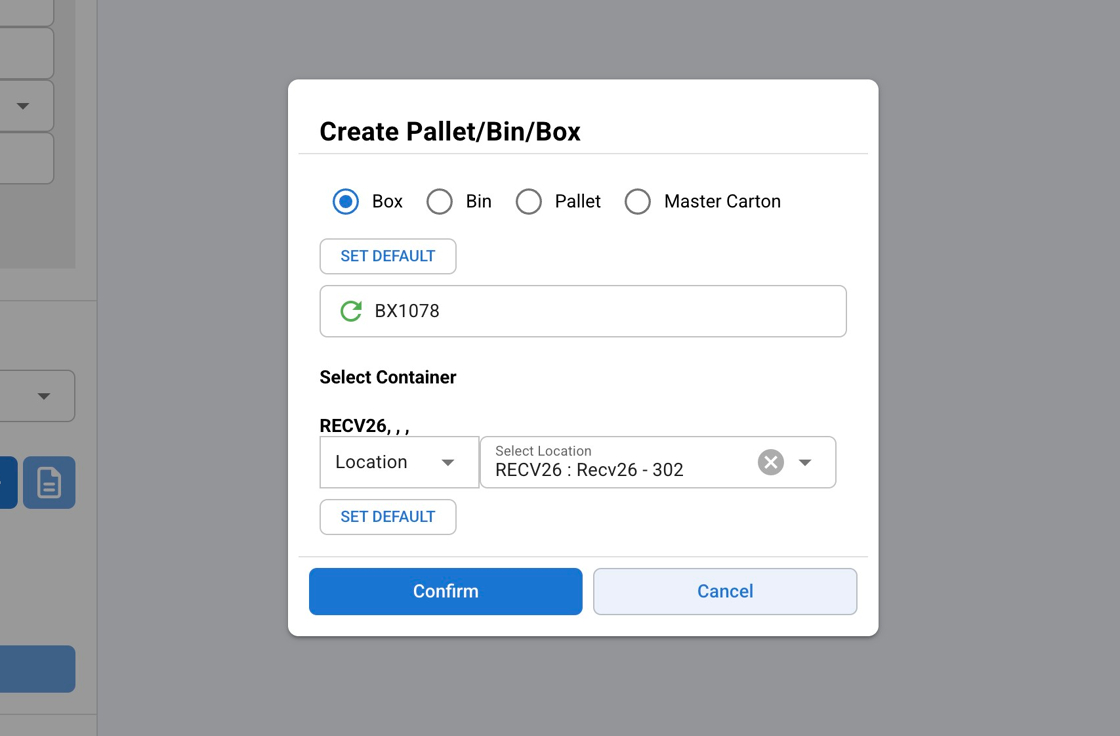
Create Container
Step-by-Step Instructions:
Select Container Type:
- Choose what you want to create: Box, Bin, or Pallet, or Master Carton.
Creating a Box:
Select the 'Box' option.
You can click on the green arrow next to the input field for the system to auto-generate a box number.
Select the container for this box. The container must be at a higher level than a box (Bin, Pallet, or a Location).
Type in the container number and press Enter. The system will verify the existence of the container.
If the container exists, a green arrow will appear next to the container number.
Creating a Pallet: A ****pallet creation differs slightly from the creation of boxes, bins, and master cartons, as pallets can be directly assigned to a lot.
Assign a Lot Number (Pallet Only):
Check the Lot Number checkbox if not already selected.
Enter the desired lot number in the input field (e.g., LT08888).
If the entered lot number does not exist in the system, the label New Lot will appear next to the field, indicating that a new lot will be automatically created upon confirmation.
An auto-generated lot number (e.g., LT088888-01) may be suggested or displayed below for reference.
SAP Bin:Select the correct one if not defaulted from Control Number creation
Factory Seal: Indicate whether the factory seal is intact.
Print Label - The 'Print Label' checkbox will trigger the printing of the WMS label after the save button is clicked.
Location
Create Location
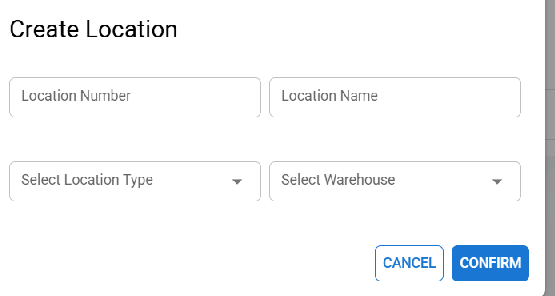
Location Number
Location Name
Location Type
Warehouse
Warehouse
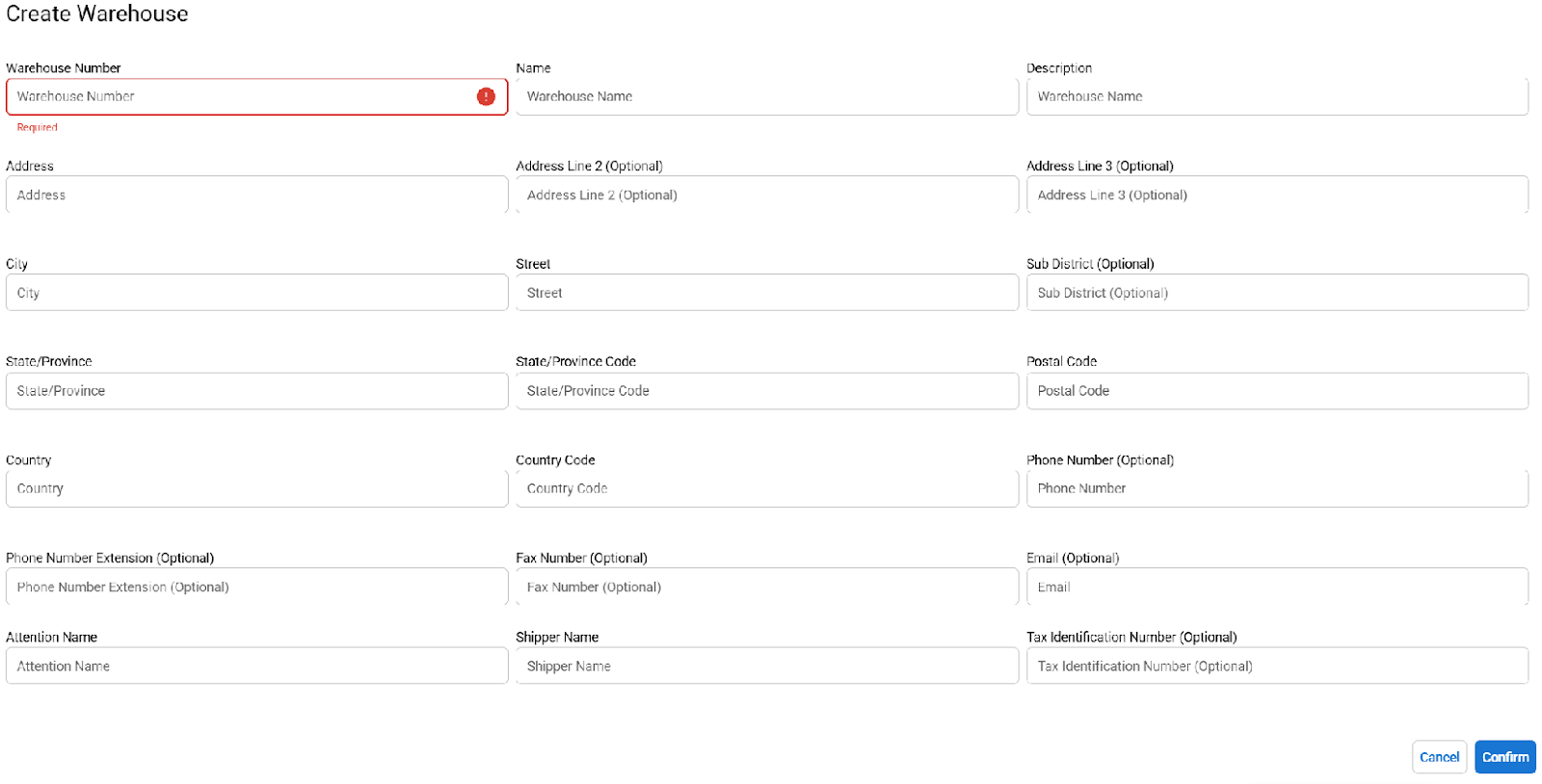
Create Warehouse
Warehouse Number
Name
Description
Attention Name
Shipper Name