Appearance
RECEIVING
The Receiving List Page serves as the central hub for receiving operations. It allows one to create, edit, view, and manage a detailed list of every item that enters the facility, providing a comprehensive snapshot of incoming stock. With this tool, you can assign unique control numbers to each delivery, enabling precise tracking from the moment items arrive at our docks to the time they're ready for storage or distribution.
By integrating real-time data capture and providing a clear and organized interface, the Control Number List Page helps maintain a high level of accuracy in inventory management. It facilitates quick access to important information such as the receiving date, dealer names, RMA numbers, tracking details, and the status of each item received.
In the following sections, you will find detailed instructions on how to effectively utilize the Control Number List Page to optimize your workflow, enhance productivity, and maintain the integrity of our inventory system. Whether you are creating a new control number, searching for specific delivery information, or managing the status of received items, this guide will provide you with all the necessary steps to perform your tasks with confidence and ease.
Receiving List
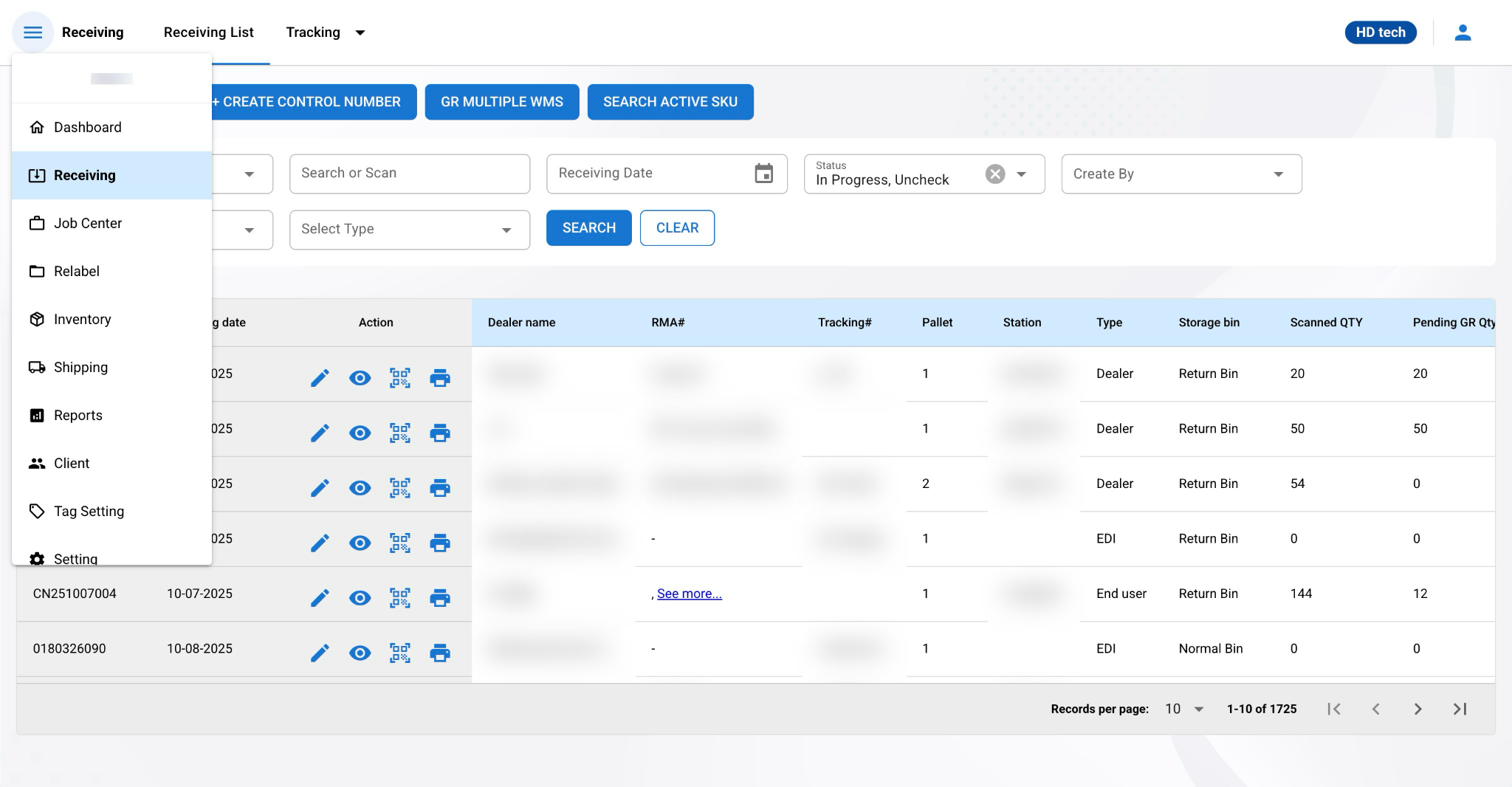
The Receiving List page is laid out to provide a clear and concise view of all entries related to the goods received, ensuring efficient tracking and processing. Below is a detailed description of each section and element found on the Control Number List page:
Control Number This is a unique identifier assigned to each delivery, following the format {Prefix}MMDDYY001. You can set the {Prefix} and change the control number format in the settings. . We recommend using a prefix that indicates it is a control number, such as "CN" or "C". 'MMDDYY' represents the month, day, and year of the control number's creation. This code is essential for the precise tracking of individual shipments and is integral to inventory management.
Receiving Date: This column records the date when the items were received in the warehouse. It can be used to sort entries chronologically or to filter records within a specific timeframe
Action: This column includes interactive buttons such as ‘Edit’, 'Detail', 'Scan', and 'Print Label', which allow users to perform various actions related to the control number. 'Edit' allows you to modify control number details, 'Detail' opens a more detailed view of the shipment, 'Scan' is used to scan items for inventory, and 'Print Label' generates a label for a control number.
Dealer Name: This field lists the name of the dealer or supplier from whom the items were received.
RMA# (Return Merchandise Authorization Number): If applicable, this column includes the RMA number, which is related to returned goods that are being sent back to the supplier for exchange, repair, or refund.
Tracking#: This field contains the tracking number provided by the carrier, allowing users to track the shipment's journey until it reaches the warehouse.
Pallet: This numerical value indicates the number of pallets received for the particular control number.
Station: ****A station is a designated location where items are received. This location is crucial for tracking incoming inventory.
Type: The type column can be used to indicate the origin of the shipment, such as direct from the manufacturer, or other vendors.
Storage Bin: A Storage Bin is used to categorize the types of items received in the warehouse. Examples of different types of storage bins include::
Return Bin: For items that are being returned.
Normal Bin: For normal or new items.
Scrap Bin: For items that are considered scrap or waste.
Scanned QTY (Quantity): Reflects the actual count of items scanned upon receipt, confirming the quantity that has entered the inventory system.
Pending GR QTY: Reflects the quantity of items that have not been goods received (GR)
Waiting RMA#: If this field is populated, it indicates that an RMA number is expected but has not yet been assigned to the incoming items.
Carrier: Shows the name of the shipping company or carrier that delivered the items.
Created By: Indicates which account created this control number.
SAP GR Date (Goods Receipt Date): Represents the date on which the goods were officially recorded in the SAP system as having been received.
Disabled "All GR" Button: When this button appears disabled (greyed out), it signifies that either no items have been scanned for the particular control number, or the system has identified that one or more of the scanned items lack an associated RMA# (Return Merchandise Authorization Number). This state serves as an indicator that the goods receipt process cannot be finalized until all necessary conditions are met.
Enabled "All GR" Button: If the button is enabled (appears clickable), it means that all items scanned under the control number have been paired with their respective RMA#s. This state implies that the prerequisites for acknowledging the goods receipt are satisfied and the user can proceed to confirm the goods receipt by clicking the "All GR" button.
Date Display: Upon clicking the "All GR" button by a staff member, the system will record and display the date of this action in the SAP GR column. This date represents the moment when the goods receipt process was completed and verified, indicating that the delivery has been thoroughly checked. It serves as a timestamp for when the items were officially recognized as received and processed in the system.

Status: The current processing stage of the shipment is indicated here, with possible statuses including 'Uncheck' for not yet processed, 'InProgress' for deliveries currently being processed, and 'Completed' for those that have been fully processed.
Uncheck: This status is assigned to entries where no items have been scanned yet.
InProgress: When an entry is marked as 'InProgress', it signifies that the scanning of items has begun, but the process is not yet complete. At least one item from the shipment has been scanned, and the entry is in the active processing phase.
Completed: This status denotes that all items associated with the control number have been scanned and the Goods Receipt (GR) process is complete. It indicates that the entire shipment has been accounted for in the inventory system and can now be considered fully integrated into the warehouse's stock.
GR Multiple WMS
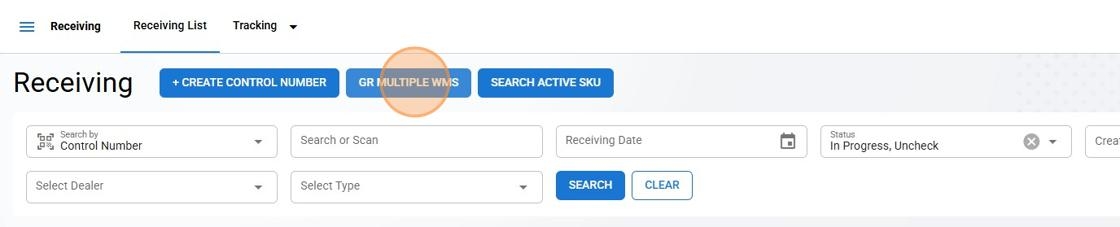
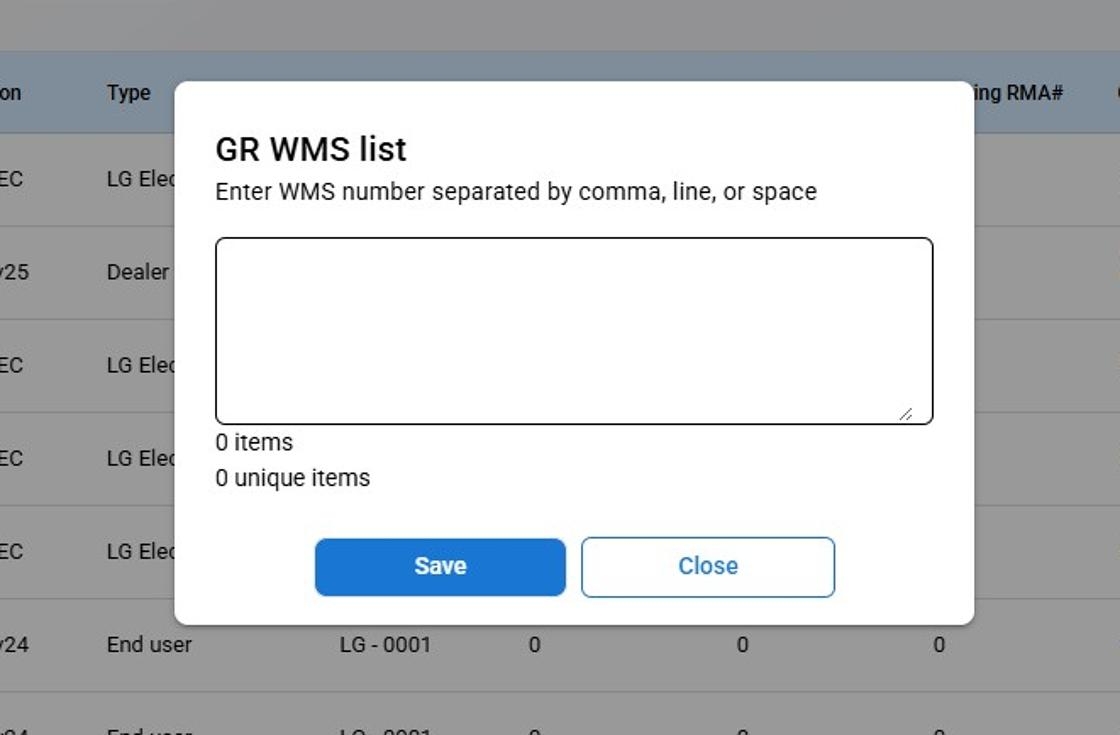
The GR Multiple WMS button is a specialized tool designed to streamline the goods receipt (GR) process for multiple items associated with various control numbers in the Warehouse Management System (WMS). This function allows users to efficiently handle batch receipts by processing several control numbers simultaneously, reducing manual entry and improving workflow efficiency. In the pop-up window, add a list of WMS numbers. You can enter them separated by commas, or paste a pre-formatted list if supported by the system.
Example: WMS12345, WMS67890, WMS11223.
Search Active Sku
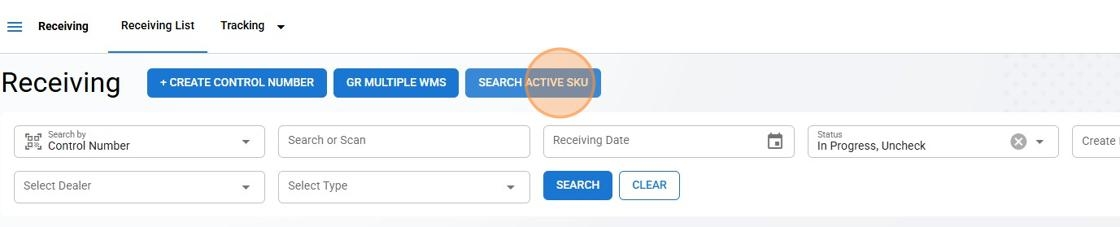
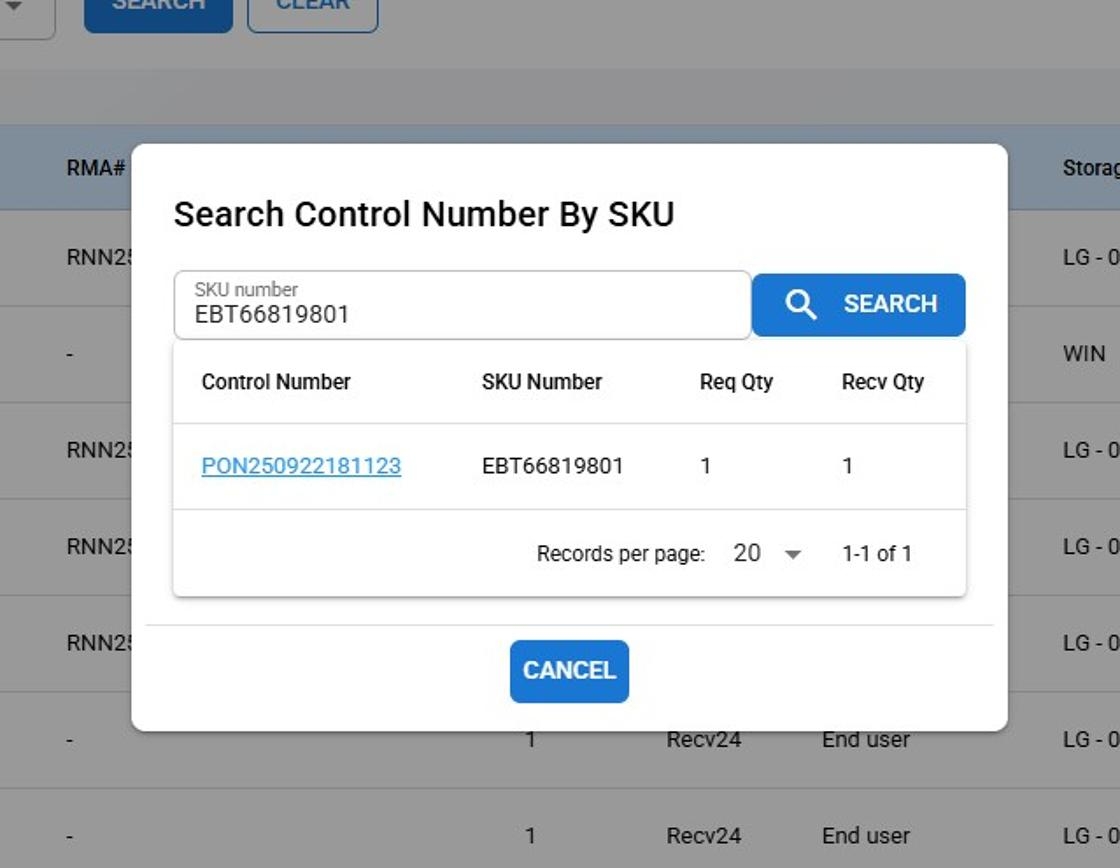
The Search Active SKU button is a specialized tool that enables users to locate control numbers associated with active items matching a specific SKU.