Appearance
Printing Barcode Menu
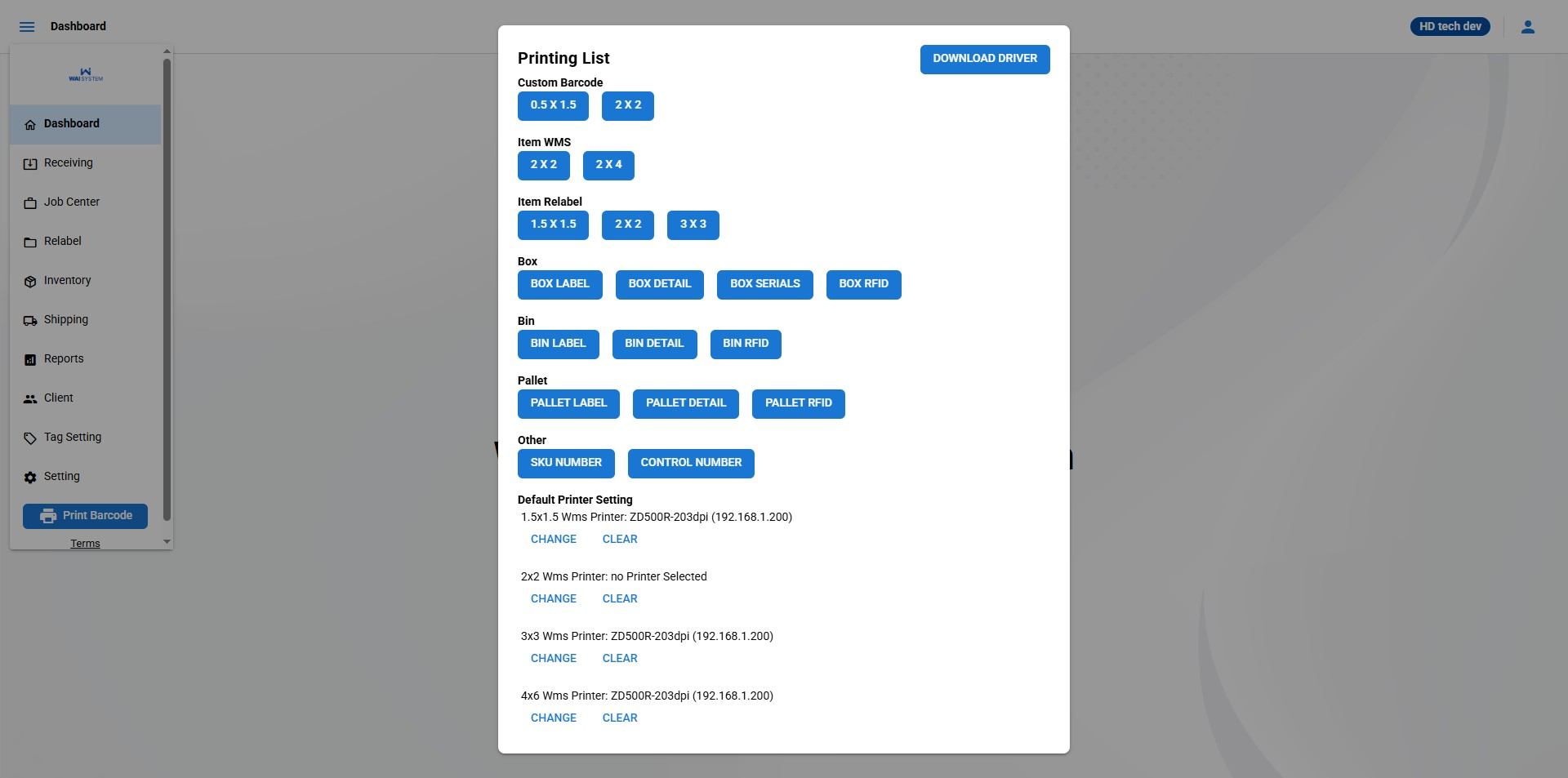
The Printing Menu Pop-Up allows users to select and print various types of labels, including custom barcodes, item labels, box and pallet labels, and bin labels. The system provides preset options for different label sizes, and users can configure default printer settings for each label type.
Label Types:
Custom Barcode:
Print custom barcodes in the following sizes:
0.5 x 1.5
2 x 2
Item WMS:
Print item labels from the Warehouse Management System in these sizes:
2 x 2
2 x 4
Item Relabel:
For relabeling items, print labels in the following sizes:
1.5 x 1.5
2 x 2
3 x 3
Box Labels:
BOX LABEL: Prints a general label for the box.
BOX DETAIL: Prints a detailed label with additional information about the box contents.
BOX SERIALS: Prints labels that include serial numbers of the items in the box.
Bin Labels:
BIN LABEL: Prints a label for identifying bins.
BIN DETAIL: Prints a detailed bin label with additional bin-related information.
Pallet Labels:
PALLET LABEL: Prints a standard pallet label.
PALLET DETAIL: Prints a detailed label with specific information about the pallet contents.
Default Printer Settings:
At the bottom of the pop-up, you can see the default printer settings for each label size. Each printer setting includes:
The label size (e.g., 1.5x1.5, 2x2, 3x3, etc.).
The printer model and DPI (e.g., ZD500R-203dpi).
The printer IP address (e.g., 192.168.1.200).
Actions for Default Printer Settings:
CHANGE: Select this button to change the default printer for the specified label size.
CLEAR: Select this button to clear the current printer setting.