Appearance
QC Page
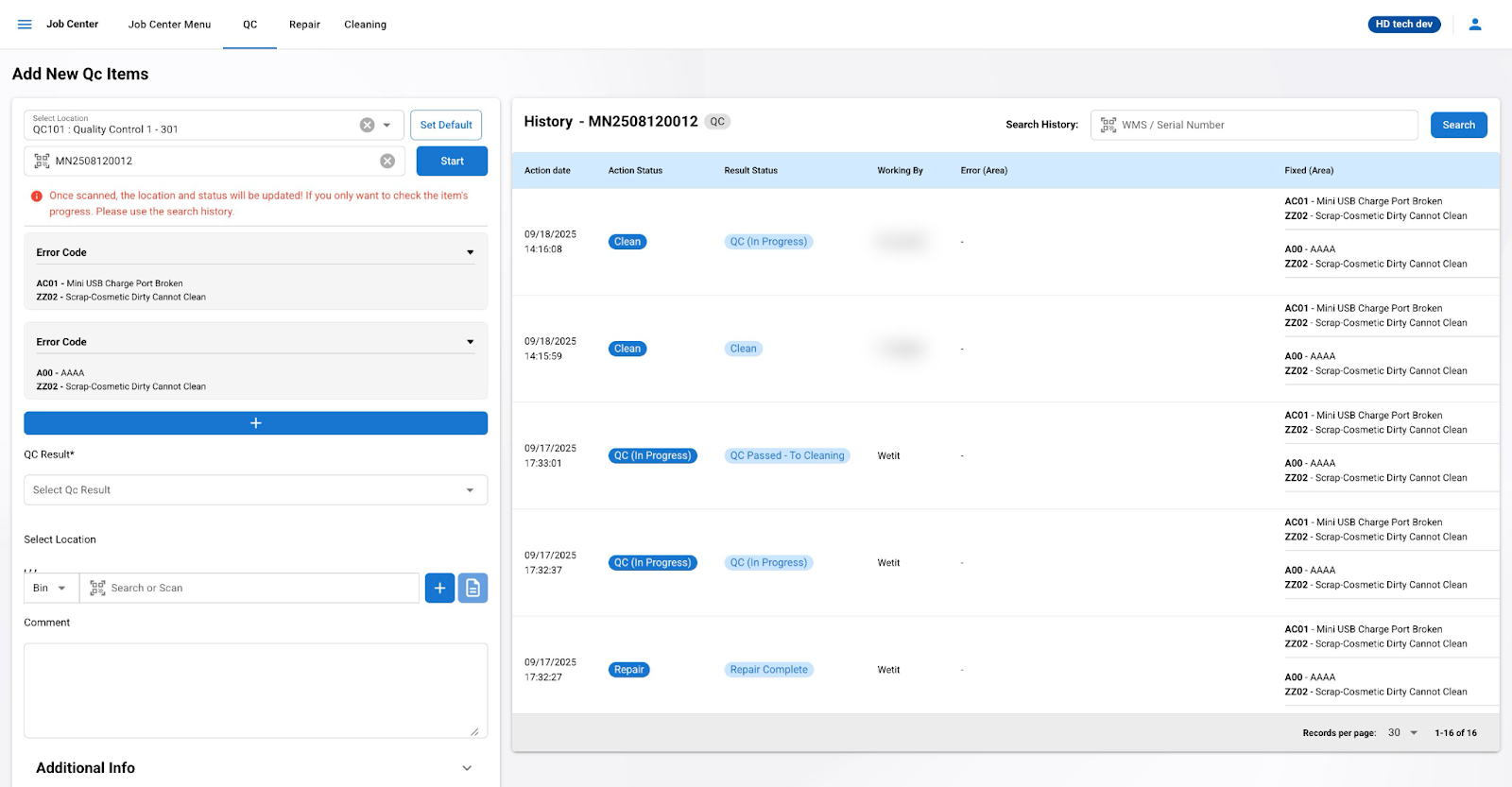
The Quality Control (QC) page is designed to manage the QC process for inventory items. This manual provides step-by-step instructions on how to use the QC page to perform quality checks, record errors, and update item statuses.
Overview
The QC page allows users to:
Select and search for items needing QC.
Update the location where you are performing the QC.
Record QC errors and details.
Update the QC status and result.
Add comments and notes.
View the history of actions.
Step-by-Step Instructions
Selecting Location and Item
Select Location: Use the dropdown menu at the top to select the QC location (e.g., QC102 - Quality Control 2 - 302).
Search for Item: Enter the WMS Number or use the search field to locate the item requiring QC. Click the Search button to populate the item details.
Item Details
The following item details will be displayed:
Update Date: Date and time of the last update.
RMA#: Return Merchandise Authorization number.
Dealer: Dealer name.
SKU: SKU Number.
WMS Number: Warehouse Management System number.
Original SN: Original serial number at the time the item was received.
Model: Model of the item.
Is Spare Part: Indicates if the item is a spare part.
Note: Any notes associated with the item.
Comment: Additional comments about the item.
QC Count: Number of QC checks performed.
Recording QC Errors
Select QC Error: Use the dropdown to select the type of QC error.
Error Detail: Enter details about the error.
Select Repair Location: Choose the repair location if the item requires repair.
Area Detail: Provide additional details about the repair area.
Completed Checkbox: Check this box if the QC process for the error is completed. For example, after a repair, the staff needs to perform QC on the item again. The staff will check this box if the error is fixed.
Click the green + button to add the QC error to the list.
QC Result
Select QC Result: Use the dropdown to select the QC result (QC and Clean Complete ,QC, QC Complete, Repair, Pending Scrap).
QC Results and Their Meanings
"QC and Clean Complete"
Meaning: "QC is complete, and the item is ready to be returned to inventory without needing to go through the cleaning process."
Action: No additional action is required.
"QC"
Meaning: QC is not complete.
Action: The QC process for the item is still ongoing. The item remains in the job center until the QC process is completed.
"QC Complete"
Meaning: QC process is complete.
Action:
The system will change the item status to "Clean".
The items can now be moved to the cleaning process.
"Repair"
Meaning: This item needs repair.
Action:
The system will change the item status to "Repair".
Users will be able to repair this item on the repair page.
"Pending Scrap"
Meaning: This item is beyond repair.
Action:
The system will change the item status to "Pending Scrap".
This indicates that the item is not repairable and should be scrapped.
Select Location for Updated Items
Select Location: Choose the new location for the item after QC.
- Please note that selecting a new location is not necessary. The system will automatically record that the item remains at the QC location.
Search or Scan Field: Enter or scan the new location details.
Click the + button to add the location.
Comment Section
- Comment: Add any additional comments or notes about the QC process.
Viewing QC History
- This section will be explained later, after the repair and cleaning processes have been covered.
Save
- Ensure all fields are filled out correctly and click the Save button to save the QC details and update the item status.